Does the Garmin R10 Work with GSPro? (Setup Guide + Compatibility)

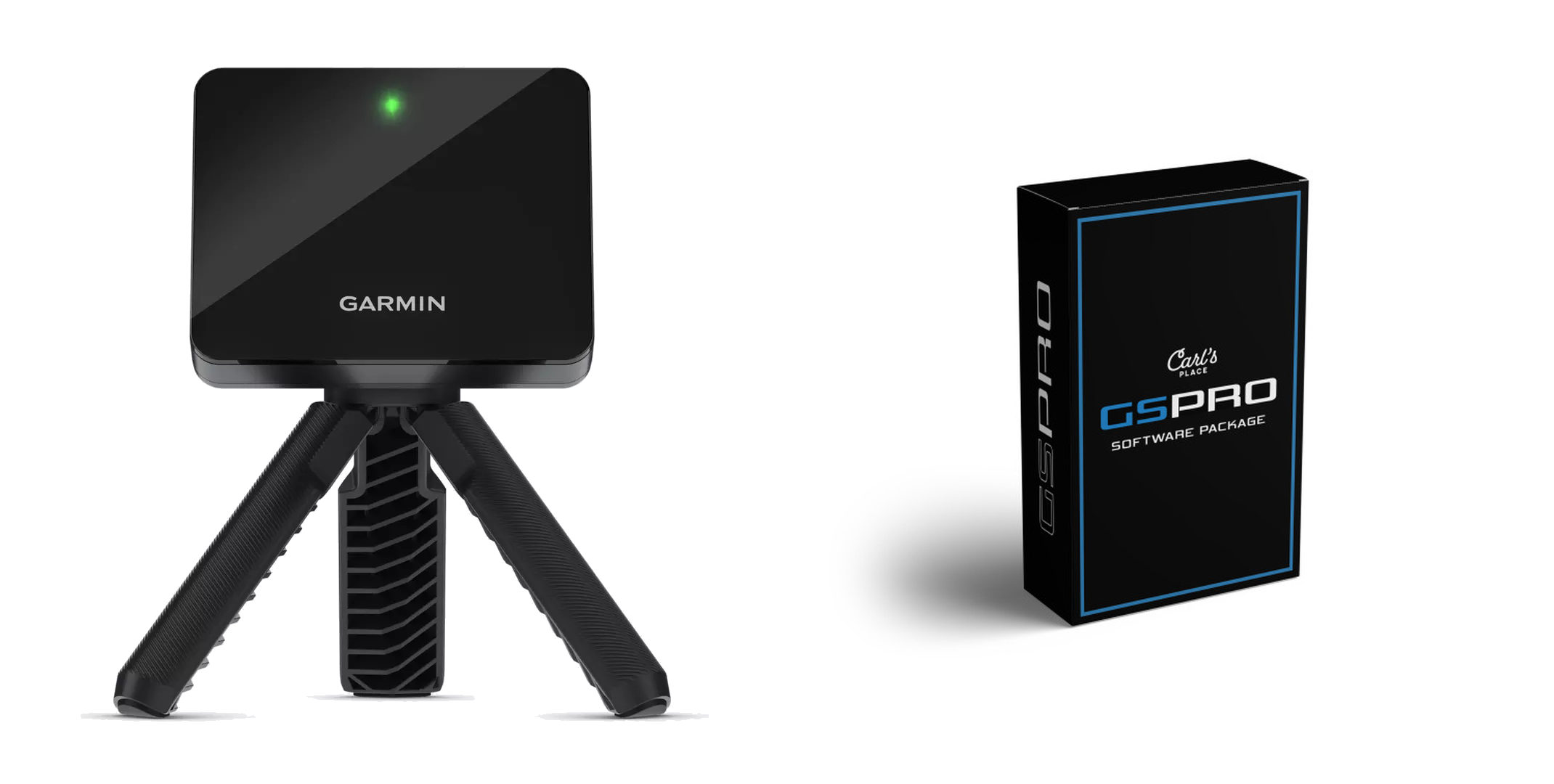
Garmin R10 GSPro Setup Guide (2026)
Yes, the Garmin R10 GSPro connection works via the GSPro API. It is not a native plug-and-play integration, so you use a connector bridge to feed shot data into the software. You will have a working connection by the end, or you will know exactly which step failed. You need a Windows PC and stable network. Check the GSPro explainer, GSPro compatibility master list, or Garmin R10 vs R50 comparison for details. Setup takes four steps, followed by a troubleshooting list.
Step 1: Verify Your Hardware, Software, and Room Readiness
- Decide on your simulator software. While E6 Connect and Garmin Home Tee Hero ($99 per year) are options, this guide focuses on GSPro ($250 per year). The most common mistake is buying hardware before confirming your software path and PC readiness. Deciding on GSPro now keeps your budget and hardware requirements clear.
- Understand the connection type. A Garmin R10 GSPro setup does not run on a native connection. You must use a community-developed API connector bridge on your PC to route radar data from the Garmin app to the GSPro software.
- Audit your PC hardware. GSPro requires a dedicated Windows gaming PC (minimum GTX 1060 or RTX 3060 for 1080p) with a capable graphics card, not a Mac or basic laptop. Underpowered PCs cause screen stutter and lag that users frequently mistake for Garmin R10 connection problems.
- Verify your local network. Your mobile device running the Garmin Golf app and your gaming PC must be connected to the exact same Local Area Network. Avoid guest Wi-Fi networks, which use client isolation to block these devices from communicating.
- Measure your room depth. Because the Garmin R10 is a radar-based launch monitor, space is non-negotiable. You need 6 to 8 feet from the unit to the ball, and at least 8 feet of ball flight to the impact screen, making the minimum total room depth 14 to 16 feet. Shorter rooms cause severe read failures and spin calculation issues.
- Calculate the true simulator cost. The real cost goes beyond the $599 Garmin R10 hardware. Budget $250 per year for the GSPro subscription, an optional $99 per year for the Garmin Golf Membership, and $40 to $80 for Titleist RCT balls to get accurate indoor spin data. Your 3-year total cost of ownership is approximately $1,470.
- Accept hardware limitations upfront. The Garmin R10 does not support native putting in GSPro, meaning you will use auto-putt features. Additionally, indoor spin measurement remains a weak point for radar units without specialized reflective balls.
Step 2: Configure and Calibrate the R10 Hardware
If shots fly wildly offline or carry half their actual distance, do not blame the Garmin R10 GSPro API connection yet. Most simulation issues stem from physical setup and calibration mistakes. Before attempting integration, ensure the launch monitor reads accurately in the native Garmin ecosystem first.
Follow these seven steps to prepare your hardware:
- Charge and update firmware. Fully charge your R10 and connect it to your mobile device. Open the Garmin Golf app and check for pending firmware updates. Outdated firmware is the primary cause of mid-session connection drops.
- Align the radar. Position the R10 exactly 6 to 8 feet behind your hitting tee on a level surface. Use an alignment stick or a laser to ensure the red line on top of the device points directly down your target line. A microscopic alignment error at the unit translates to massive start-line and path errors in your simulation.
- Set the environment mode. Open the Garmin Golf app and select indoor mode. Running outdoor mode indoors causes weird launch angles, inconsistent carry distances, and frequent no-reads.
- Select your club. Ensure the club selected in the app matches the club in your hand. If you hit a wedge while the app expects a driver, the internal algorithms will output highly inaccurate flight data.
- Establish a baseline. Swing a familiar club to verify your numbers. Once you get stable, repeatable reads in the Garmin app, run the level calibration sequence.
- Solve indoor spin issues. Radar units struggle to measure spin in tight indoor spaces. To fix this, use radar-optimized balls like Titleist RCT balls. This is a necessary accessory choice if spin fidelity matters.
- Set your putting plan. The R10 does not read indoor putts. You must choose to use the GSPro auto-putt feature or set up a separate webcam-based putting solution.
What success looks like: Your R10 captures every swing reliably within the native Garmin Golf app. Do not attempt to troubleshoot the GSPro connector bridge if your physical launch monitor is misaligned or throwing errors. Get the hardware right first.
Step 3: Connect the Garmin R10 to GSPro
Setting up the Garmin R10 GSPro connection requires building a digital bridge over your local network. Because there is no native integration, a single mismatched number will grind your system to a halt. Follow these six steps to establish a reliable, repeatable connection.
- Launch GSPro on your PC. Open a basic driving range session before turning on your hardware. Confirm the software runs smoothly and does not crash, establishing a clean baseline for the connection.
- Choose your connector path. You can attempt a direct Bluetooth-to-PC connection, but the community-built connector bridge app is the most stable and recommended path. Download the latest connector release from the community GitHub repository and extract the files to your PC.
- Run the connector. Right-click the connector executable file and select Run as Administrator. The connector window will open and display a specific local IP address and port number. Write these numbers down.
- Configure GSPro. In the GSPro connection settings, set your launch monitor selection to Open API. This tells GSPro to actively listen for the incoming data stream from your external connector.
- Perform the Garmin Golf app handoff. Open the Garmin Golf app on your mobile device. Navigate to the simulator section, select the E6 Connect option, and tap Play on PC. Enter the exact IP address and port number displayed in your PC connector window.
- Start the session. Tap start in the Garmin app. The PC connector status will turn green, and GSPro will display a "Ready for shot" message to confirm a successful bridge.
Avoid the common IP trap:
The most common connection failure is entering the wrong IP. Do not enter your public internet IP, phone IP, or your router IP. You must use your PC's local LAN IP, which typically starts with 192.168.
Keep the connection active:
Do not close the connector window once you start playing. You can minimize it to keep your desktop clear, but closing the bridge will immediately kill your data stream mid-swing.
Step 4: Validate Your Garmin R10 GSPro Connection
Nothing kills the excitement of setting up your Garmin R10 GSPro connection like a blank screen. Validate your data path before playing a full round to ensure accurate tracking.
- Run a controlled test shot. Swing a mid-iron normally with the same ball (use a Titleist RCT ball for best tracking). Avoid drivers or short chips for initial tests.
- Verify the visual chain. Check three critical points:
- Garmin side: The Garmin Golf app shows an active session.
- Connector side: The PC connector app shows active packets.
- GSPro side: The software displays "Ready" or "Waiting for shot."
- Lower graphics if shots lag. If ball launch is delayed, temporarily lower your GSPro graphics settings to rule out PC performance bottlenecks.
- Tune your settings. Confirm indoor mode in the app. Apply distance calibration offsets only after establishing stable read consistency.
Troubleshooting: What to Do If Shots Don’t Register
If your swings do not register, run through this diagnostic checklist:
- Run the same-network test. Ensure your phone and PC use the exact same Wi-Fi band, not a isolated guest network.
- Verify your IP address. Confirm your PC's current IPv4 LAN IP matches the IP address entered in your Garmin app.
- Check for port mismatches. The port number in your Garmin app must match the port specified in the PC connector.
- Disable the firewall. Windows Defender Firewall is the primary block. Temporarily disable it to test, then add an inbound allow rule for the connector.
- Turn off VPNs. Disable all active VPNs and avoid double-NAT setups like secondary mesh routers.
- Restart in order. Close all software, open the PC connector first, and then launch GSPro.
- Reset Bluetooth. If using direct Bluetooth, remove the Garmin R10 in Windows settings, re-pair it, and confirm Windows sees the device before launching software.
What Success Looks Like: Ten consecutive shots register in GSPro with consistent, real-time timing.
Common Mistake: Assuming your Garmin R10 is broken. Ninety percent of the time, the hardware is fine and Windows Firewall is simply blocking the incoming port connection.
The Bottom Line on the Garmin R10 GSPro Setup
Connecting your Garmin R10 to GSPro transforms a budget launch monitor into a highly capable home golf simulator. Using the community API workflow to bridge the two programs is a proven, reliable setup. But it requires executing your connection steps in a precise sequence to avoid system drops.
To get your system running, always follow this order:
- Open GSPro on a compatible gaming PC.
- Start the Garmin Golf app and select the E6 Connect option.
- Launch your community connector bridge using your exact local PC IP address and port.
Keep two honest caveats in mind. The radar-based Garmin R10 requires at least 14 feet of room depth, and indoor putting and spin tracking remain known pain points. While RCT balls and auto-putting work around these hardware limits, our Garmin R10 vs Garmin R50 comparison highlights the difference of a native, self-contained ecosystem.
If you are sticking with the R10, read our GSPro explainer to verify PC hardware or check our GSPro compatibility master list to plan your build. Run a quick ten-shot test to confirm your connection is stable, and only calibrate the hardware once that stability is locked in.
Frequently Asked Questions
Does the Garmin R10 work with GSPro natively?
No, the Garmin R10 does not have native plug-and-play support for GSPro. You must use the GSPro open API path and a community-built connector bridge program on your Windows PC to route the radar data. It takes about five minutes to set up, but it remains an unofficial integration. Check our GSPro compatibility master list for native alternatives.
Do I need the Garmin Golf Membership to use GSPro?
No, you do not need the active $99 per year Garmin Golf Membership to play GSPro. The Garmin subscription is only required for Garmin's own simulation features like Home Tee Hero. For GSPro, you only need the $250 per year GSPro software license and a free Garmin account to run the mobile app.
Do I need E6 Connect to connect the R10 to GSPro?
No, you do not need to buy an E6 Connect subscription to use GSPro with your Garmin R10. The Garmin Golf app simply uses the E6 Connect "Play on PC" menu screen as a free digital handoff to broadcast the R10's radar data over your local network to your PC connector bridge.
Why are my shots not showing up in GSPro?
The most common reason shots do not register is Windows Defender Firewall blocking the connection port. To fix this, create an inbound rule in your Windows Firewall to allow the connector port. Also verify that your phone and gaming PC are on the exact same local Wi-Fi network, and that you entered the PC's correct local IP address, not your public IP.
Can I putt with the R10 in GSPro?
No, the Garmin R10 does not natively support indoor putting in GSPro because its radar cannot track slow, short ball rolls. Most users solve this weakness by turning on the GSPro auto-putt feature. Alternatively, you can integrate a third-party camera-based putting system like a webcam running custom software alongside your R10.
What is the cheapest real total cost to run the Garmin R10 with GSPro?
The absolute minimum starting cost is approximately $1,440 over three years, assuming you already own a capable gaming PC. This total includes $599 for the R10 hardware, $750 for three years of the GSPro license, and $90 for Titleist RCT balls to measure indoor spin. If you must buy a dedicated gaming PC, add at least $800 to that total.
Related Guides
Square Golf Omni Setup Guide (2026): First Run and GSPro Connection
Master your Square Golf Omni setup with our step-by-step guide. Learn exact Ready Zone dimensions, app calibration, and how to connect to GSPro cleanly.
How to Build a Golf Simulator in Your Garage: Step-by-Step (2026)
Learn how to build a golf simulator in your garage with this step-by-step 2026 guide. Get exact clearance dimensions, costs, and projector setup tips.
Golf Simulator for Small Rooms: Best Setups Under 12 Feet Deep
Need a golf simulator small room setup? Discover the best camera-based and overhead builds under 12 feet deep with real placement math, costs, and gear.